How to Choose the Right Moment to Send a Post-Service Customer Satisfaction Survey
Nov 25, 2026
Table of Contents
The best time to ask about a service is right after it ends, while the experience is fresh, but not before the problem is actually solved. This guide shows how to choose the right moment for a post-service customer satisfaction (CSAT) survey and how to set up the timing in SurveySparrow with triggers, scheduled sends, reminders and throttling.
At a glance
| Who it's for | Support, field service, contact center and property or facilities teams that measure satisfaction after each service |
| What you'll set up | A short CSAT survey, a trigger or schedule that sends it at the right moment, reminders for non-responders, and throttling |
| Features used | Customer Experience › CSAT, Distribute channels, Share Survey API, helpdesk integrations, email share automation and reminders, Survey Throttling, Results |
| Before you start | Know which event marks the end of each service: a ticket closed, a call ended, a job completed |
Why timing changes your CSAT results
- Memory fades fast. A survey sent days later measures a vague impression, not the service you want to improve.
- Too early measures the wait, not the fix. Asking before a repair is confirmed or a ticket is resolved captures frustration about an open issue.
- The wrong channel lowers response. A customer who just spoke to an agent by phone is more likely to answer a text than an email.
- Over-surveying wears people out. Customers with frequent service contacts stop answering if every interaction triggers a survey.
Pick the moment by service type
Use these as starting points, then adjust using your own response data.
| Service moment | When to send | Channels that fit |
|---|---|---|
| Support ticket resolved | When the ticket's status changes to resolved or closed | Email, or the helpdesk's own notification flow |
| Phone call with an agent | Shortly after the call ends, the same day | SMS or WhatsApp |
| On-site repair or installation | After the job is marked complete and the customer has had time to confirm the fix | SMS, WhatsApp or email |
| In-person or in-store service | At the point of service, before the customer leaves | QR Code or Offline App |
| Ongoing service relationship (tenants, members, subscribers) | On a fixed cycle, such as every three months, separate from individual service visits | Scheduled email |
Step by step: time your post-service survey
Step 1: Define the event that ends each service
For every service you want to measure, write down the event that marks it as done, such as a ticket set to resolved, a call ending or a work order closed, and the system that records it. That event is your trigger.
Step 2: Create a short CSAT survey
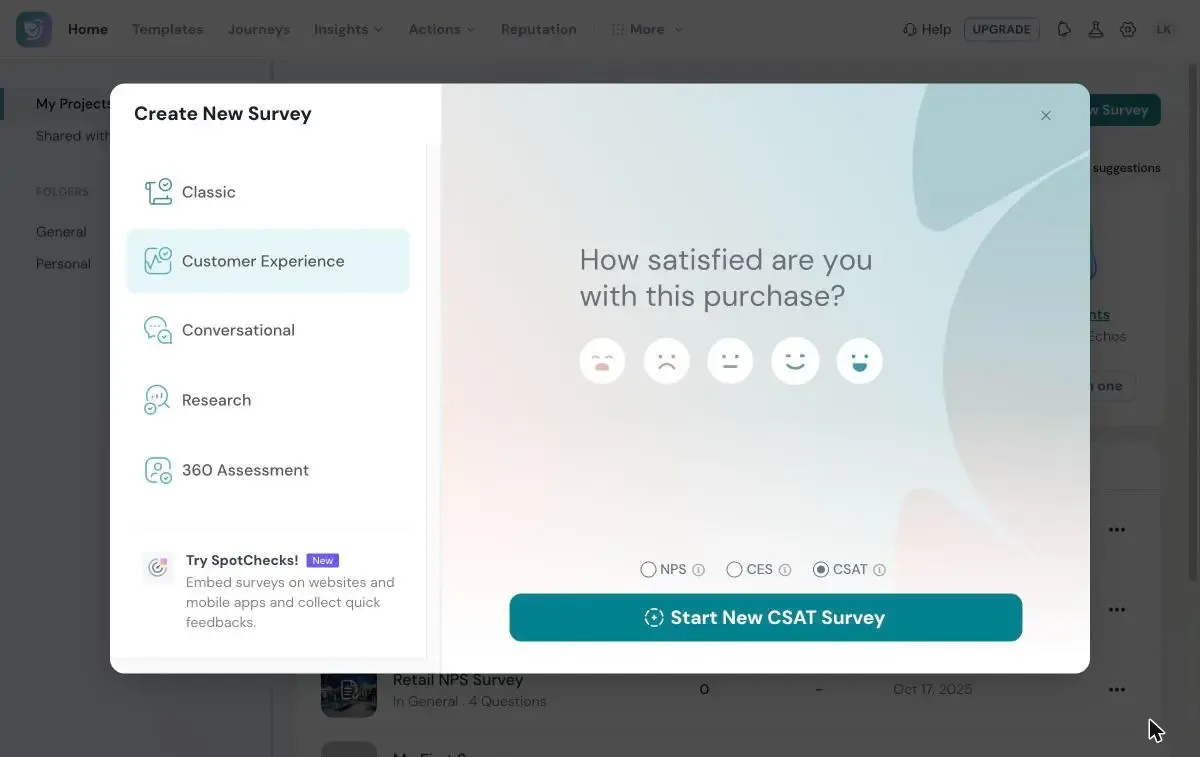
Go to Home › New Survey › Customer Experience, choose CSAT and select Start New CSAT Survey. The template pairs a five-point satisfaction scale with a “primary reason for your score” question. Keep it to those two questions so it can be answered in seconds on any device. If you also want an overall loyalty score, add an NPS survey on its own cycle instead of extending this one.
Step 3: Send the survey when the service event happens
Event-based sends happen outside SurveySparrow, in the system that records the service, so connect that system to your survey:
- Helpdesk integrations. In the survey's Integrate › Integrations list, the Freshdesk integration collects customer feedback when a ticket's status changes. SparrowDesk and Zendesk integrations are also available.
- Share Survey API. The API option sends transactional surveys, so your field service, CRM or telephony system can request a survey for each completed job or call.
- Automation tools. Zapier, n8n, IFTTT and UiPath integrations can connect systems that have no direct integration.
Step 4: Match the channel to the service
Share from the survey's Distribute tab. Channels include Email, Email Embed, SMS, WhatsApp, Web Link, QR Code, SpotChecks for websites and apps, Mobile SDK and Offline App. Use SMS or WhatsApp after phone or field service, email after support tickets, and QR Code at in-person locations. WhatsApp and SMS invites are paid from a prepaid wallet in your billing settings.
Step 5: Put relationship surveys on a schedule
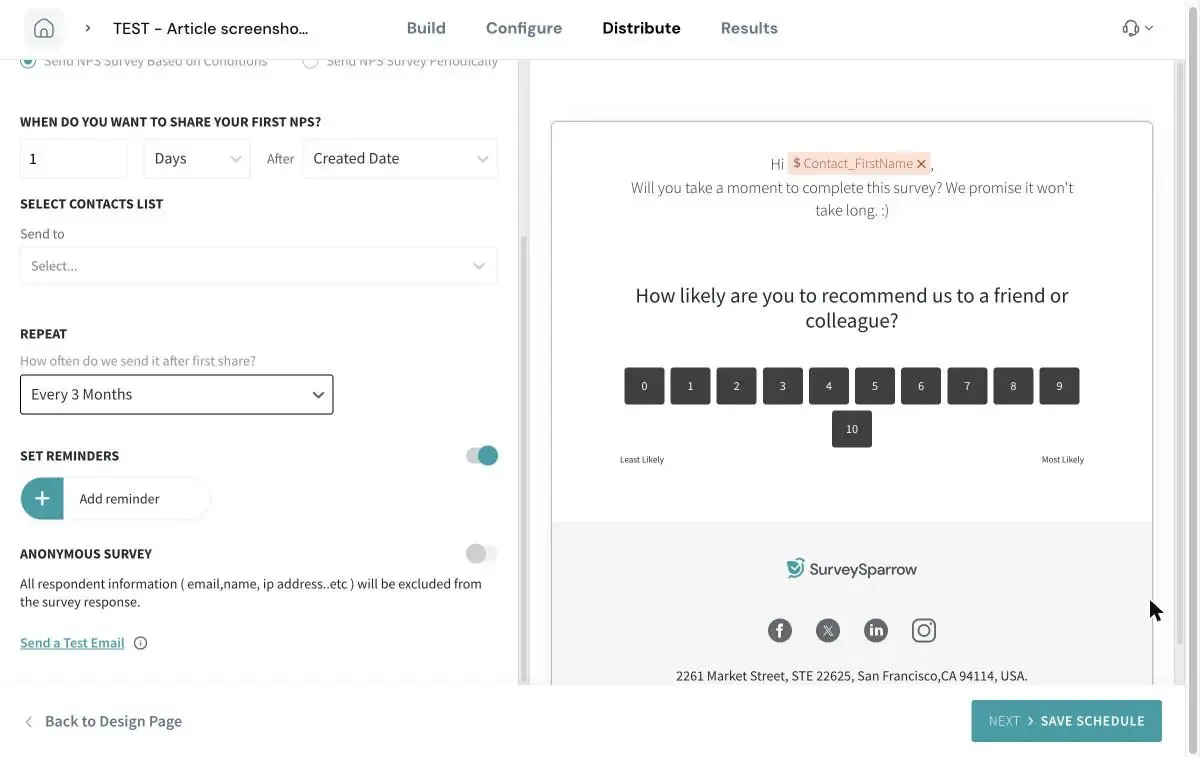
For customers you serve continuously, such as tenants or members, run a separate periodic survey rather than surveying every visit. On the survey's Distribute tab, select Email, set up the email, then select Proceed. Under Automate, choose a method. On an NPS survey these read:
- Send NPS Survey Based on Conditions: send the first survey a set number of hours, days or months after the contact's Created Date, then use Repeat to send it again Every 45 Days, Every 3 Months, Every 6 Months or Every Year. For a quarterly tenant survey, choose Every 3 Months.
- Send NPS Survey Periodically: pick the people to survey (you can Import from CSV) and a Weekly, Monthly or Yearly schedule with a day and time.
For a single send instead, use the One-Time tab.
Step 6: Remind people who didn't answer
On the same screen, turn on Set Reminders and select Add reminder. Each reminder goes to non-responders or partial responders after the number of days you set, and you can add more than one. Use Send a Test Email to check the message before you select Save Schedule.
Step 7: Protect frequent customers from survey fatigue
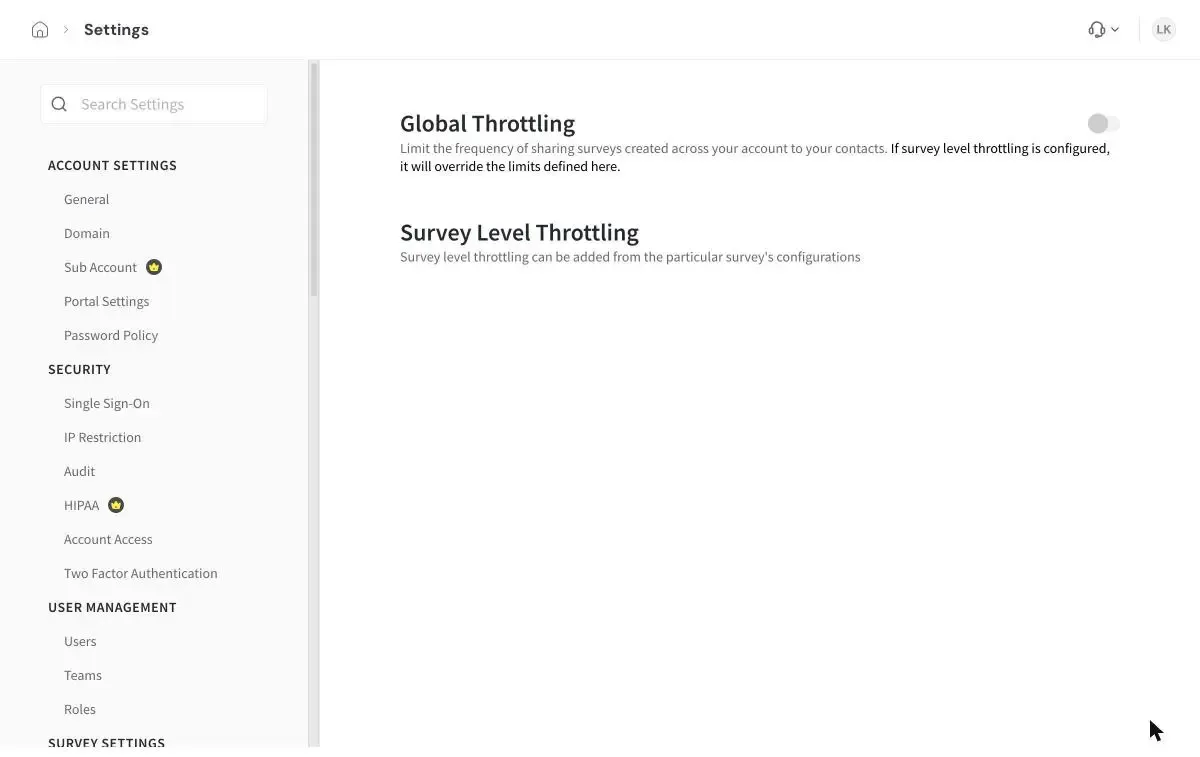
Customers with several service contacts a month should not get a survey every time. In Settings › Survey Throttling, turn on Global Throttling to limit how often surveys reach the same contacts, or set throttling on this survey alone. For more detail, see how to prevent survey fatigue with survey throttling.
Step 8: Check the timing is working
In the survey's Results › Overview, the Insights panel shows Visited, Started, Completed and Completion Rate, and you can filter it by share to compare channels or send times. On a dashboard, the Share Channels filter compares CSAT across channels. If one moment or channel answers far less, move the send earlier, later or to another channel and compare again. For dashboard design ideas, see how to design a customer feedback dashboard that drives decisions.
Tips and common mistakes
- Trigger on resolution, not on contact. Survey when the issue is fixed, not when the ticket is opened or the visit is booked.
- Keep it to two questions. A rating and a reason are enough after a single service.
- Separate service and relationship surveys. Transactional CSAT tells you about one visit; a periodic survey tells you about the whole relationship.
- Don't stack surveys. Set throttling before turning on triggers for several services.
- Test the trigger. Send a test ticket or job through the flow before going live.
- Review timing quarterly. Response patterns shift as channels and customer habits change.
Time Your CSAT Surveys Right After Every Service
TRUSTED BY BEST-IN-CLASS BRANDS


















FAQs
How soon after a service should I send a CSAT survey?
As soon as the service is complete and the issue is resolved: the same day for support tickets and phone calls, and after the customer has had a chance to confirm an on-site repair worked.
Can SurveySparrow send a survey automatically when a support ticket closes?
Yes, through an integration or the API. The Freshdesk integration collects feedback when a ticket's status changes, and the Share Survey API lets other systems request a survey when a service event happens.
How do I collect feedback after phone calls?
Send a short CSAT survey by SMS or WhatsApp shortly after the call ends, so customers can answer on the same device they used for the call.
How do I run quarterly surveys for ongoing customers such as tenants?
Use the email share's Automate mode. With the conditions-based method, set Repeat to Every 3 Months; the periodic method offers weekly, monthly or yearly schedules.
What if customers don't respond?
Turn on Set Reminders in the email share and add one or more reminders. Each goes to non-responders or partial responders after the number of days you set.
Planning the wider program? See how to build a customer feedback program using NPS, CSAT and CES.
Timing checklist
- List each service and the event that marks it complete
- Create a two-question CSAT survey
- Connect the event through an integration, the API or an automation tool
- Choose the channel that fits each service
- Schedule relationship surveys separately with Automate
- Turn on reminders for non-responders
- Turn on throttling before going live
- Compare completion rates by channel and adjust
Ready to time yours? Start with SurveySparrow and ask for feedback at the moment it means the most.
