Others
How to Convert Excel to PDF Online: Three Easy Ways
Discover three quick and easy methods to convert Excel to PDF online using Google Sheets, free conversion tools, and Adobe Acrobat, simplifying your document sharing process.

TRUSTED BY BEST-IN-CLASS BRANDS


Watch Customer Stories

There is a lot you can do with spreadsheets – twenty six, to be exact.
However, there are a lot of people who don’t have, don’t use, or just don’t like Excel. So, here’s a quick tutorial on how to convert Excel to PDF for their benefit. We will be using three easy methods with tools you can find online.
Method 1: How to Convert Excel to PDF with Google Sheets
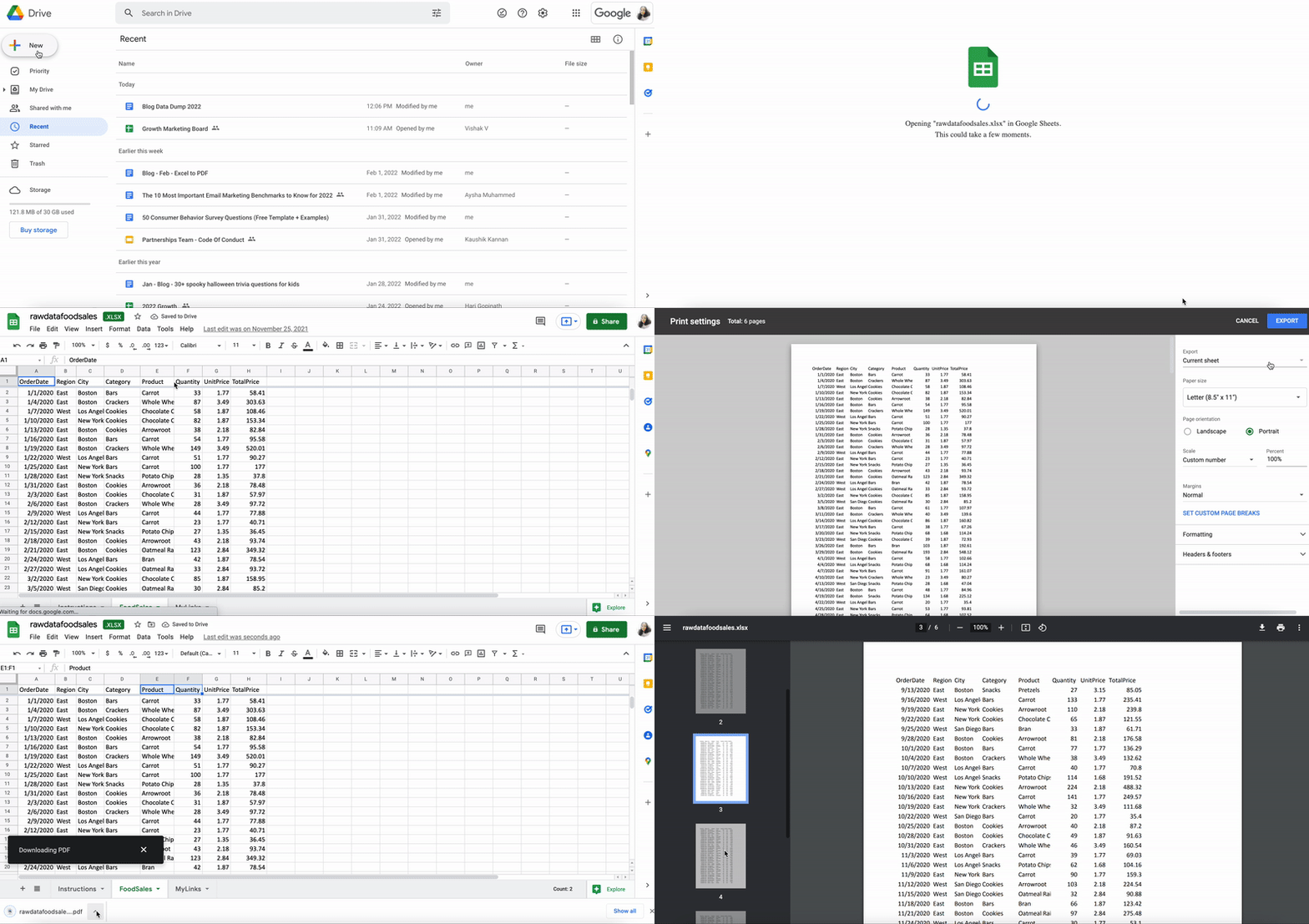
- Upload your Excel file to Drive.
- Click to open. It will automatically open with Google Sheets.
- Now go to the File option on the menu bar. Scroll down to ‘Download’ and click on PDF(.pdf).
- Done! Your Excel is safely saved as a PDF.
Pro tip: You can download your survey data as pristine PDFs in SurveySparrow Results. Here’s how:
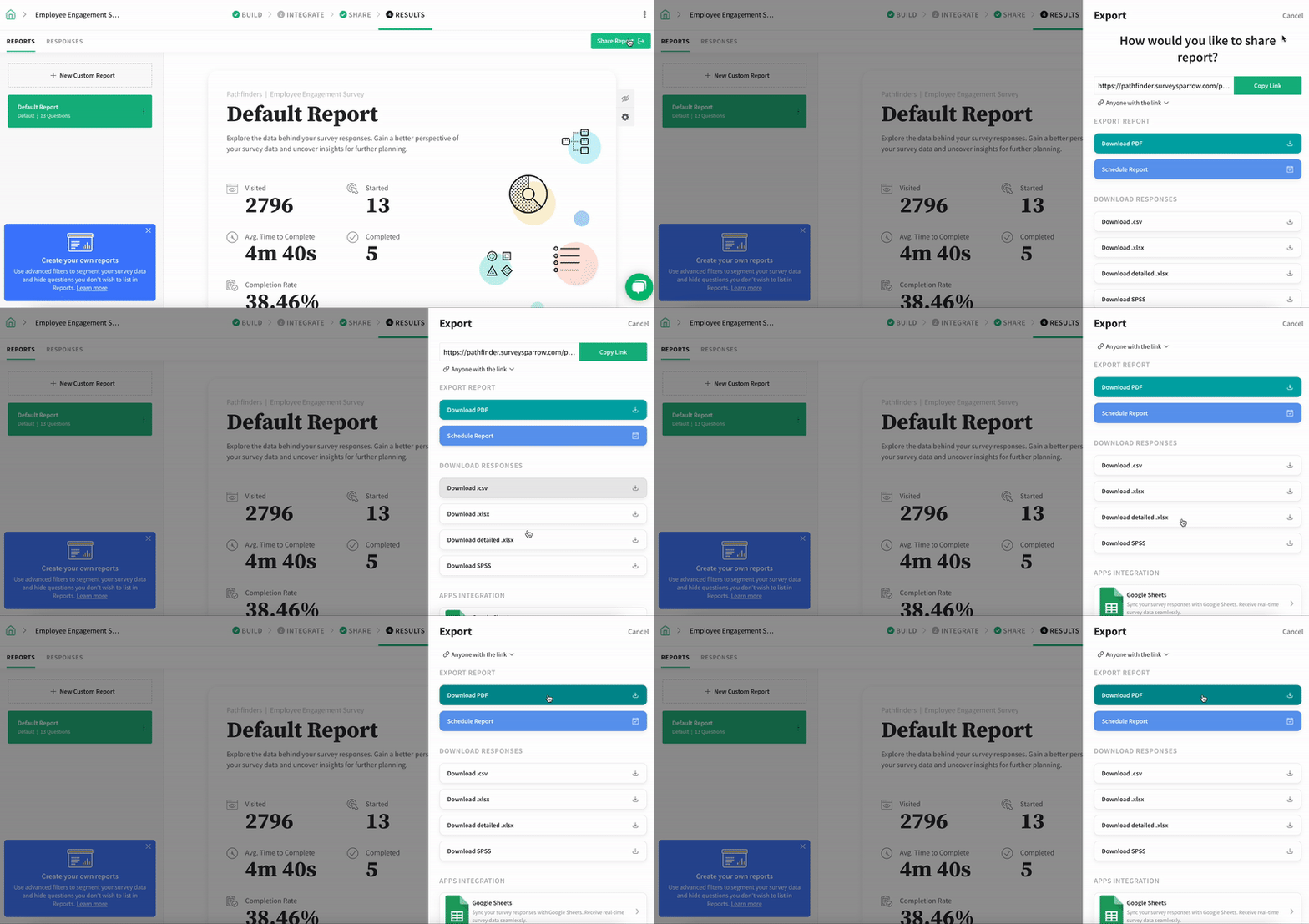
- Click on Share Report.
- Download your report as a PDF or a copy of the responses as an Excel file.
- If your account is HIPAA-enabled, you can also share as a password-protected link.
Interested in trying out our features? Claim your free trial below.
Method 2: How to Convert Excel to PDF with Free Conversion Tools
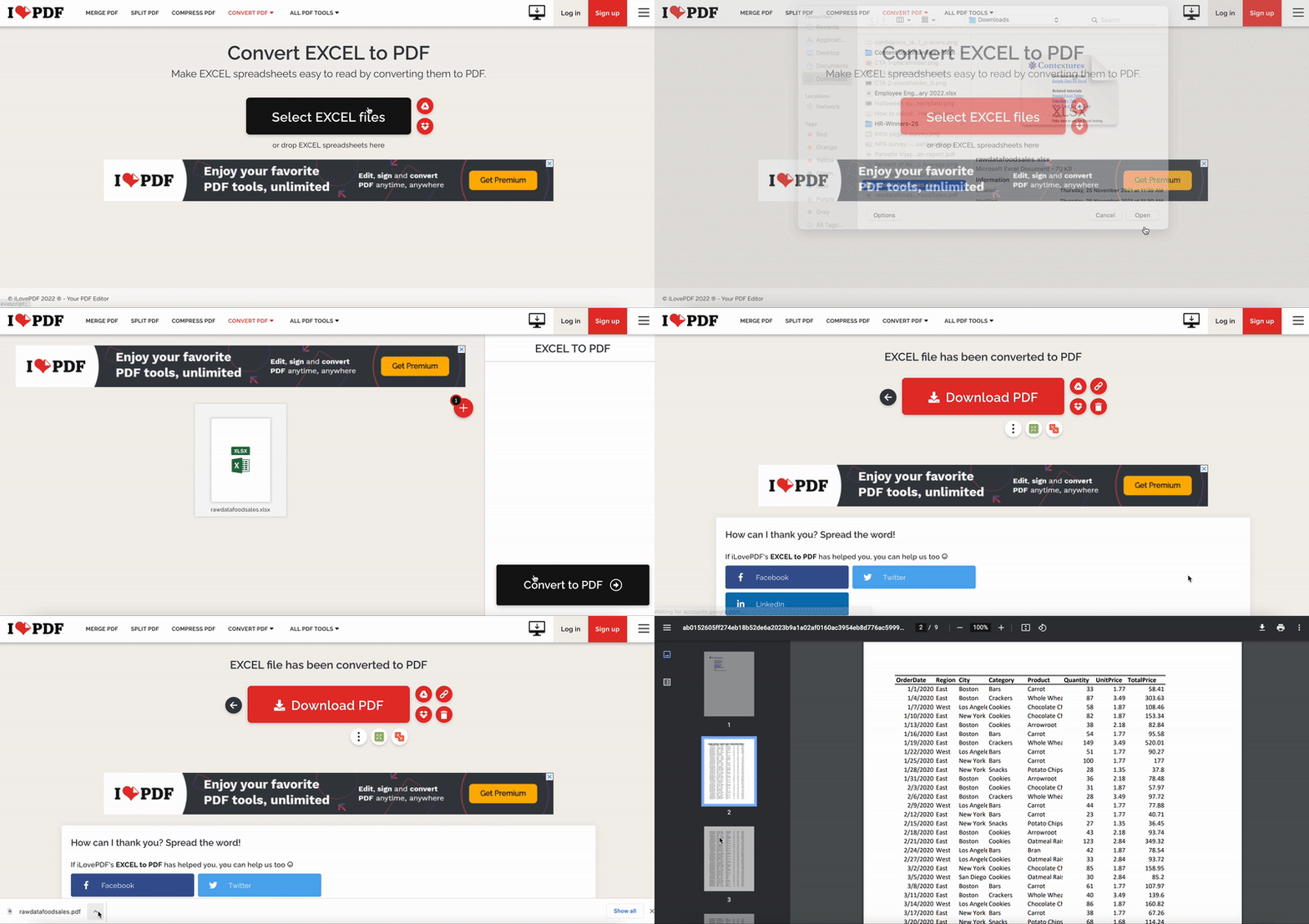
- Choose a free conversion tool like ILovePDF or SmallPDF. For this example we will be using ILovePDF.
- Choose your file and upload. You can add as many files as you like.
- Click Convert to PDF.
- Done! Your file will automatically download after a few seconds’ delay.
Fun fact: Fancy yourself an Excel guru? You might be interested to know that there actually is a Financial Modeling World Cup – an Excel esports event, sponsored by Microsoft, with prizes totaling $25,000!
Method 3: How to Convert Excel to PDF with Acrobat
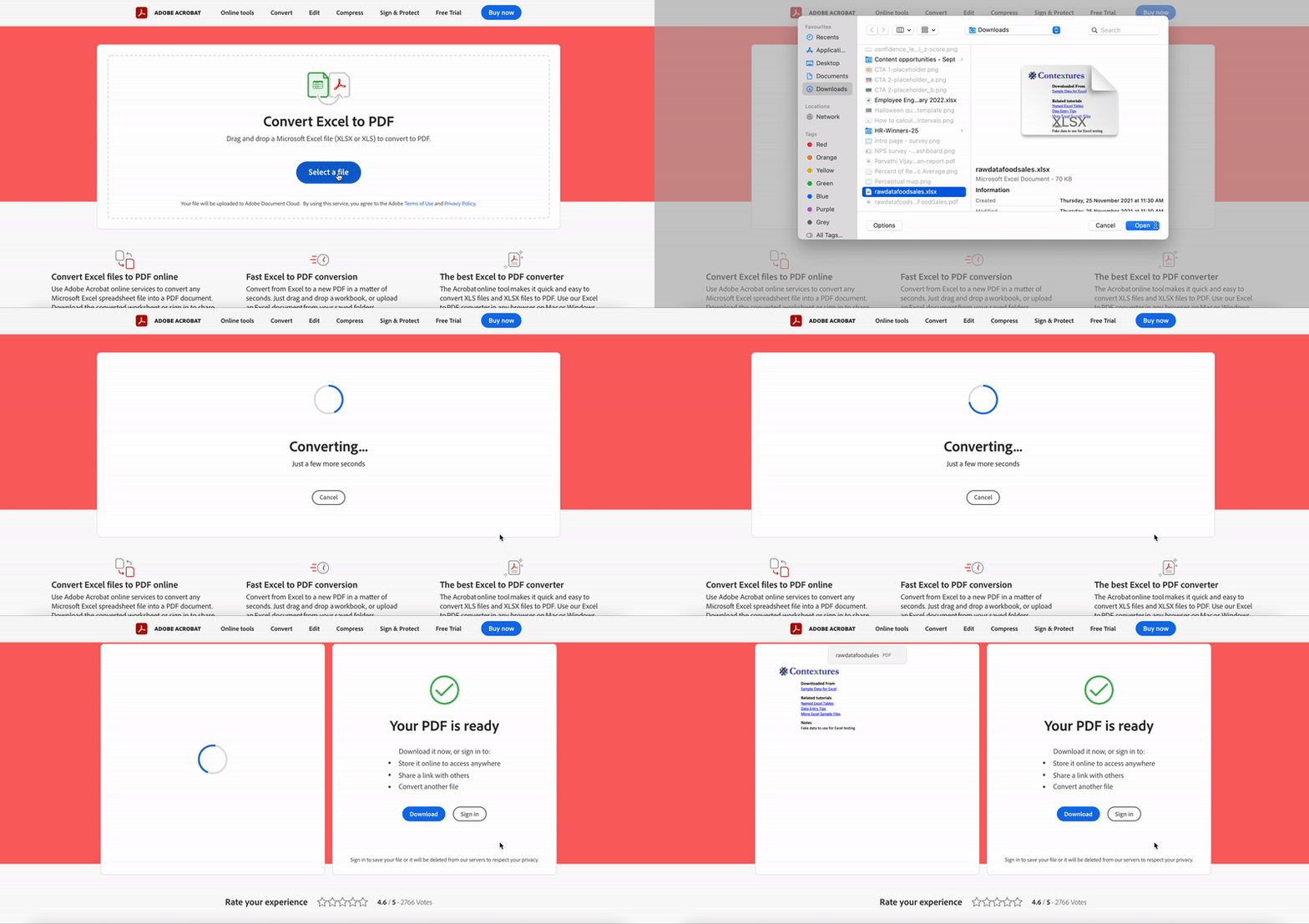
- First things first, you will need an Adobe account.
- Once you log in, head to their Acrobat online converter tool.
- Click Select a file and upload your file. This will automatically start the conversion process.
- Bam, done! Download your file, store it in Adobe’s document cloud or share a link to the file with your collaborators for easy viewing.
Fun fact: The PDF format was invented by Adobe in the 1990s. They launched it through Acrobat; users had to pay a flat fee of $50 per user to create and view PDFs. It wasn’t until 2008, when Adobe released a public patent, that PDFs became free to create and use.
Wrapping Up
That’s it folks – here are our top three methods on how to convert Excel into PDF. We hope you find them useful.
PS: Got questions about SurveySparrow? We’re just a chat away!
Watch Customer Stories